
Last Updated on June 24, 2026
Using the COS Dashboard, you can review, monitor, and manage your COS Configurations, COS – SDs, and Testing Devices from a central location.
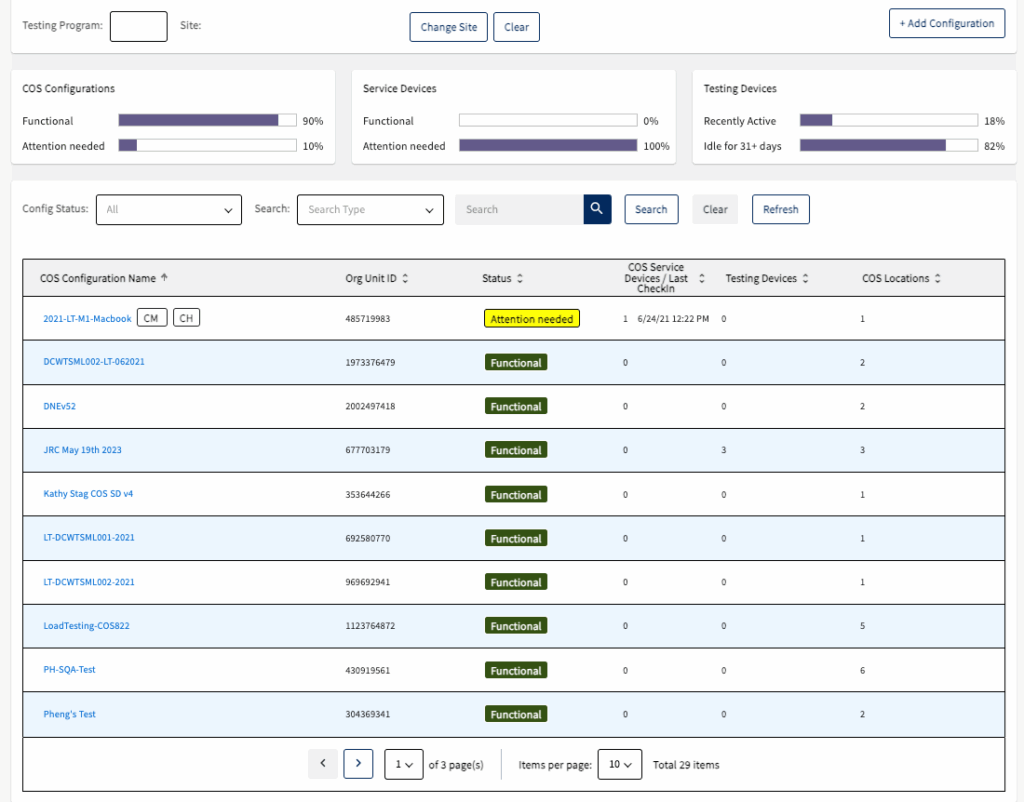
From the COS interface, select a Testing Program and a Site to display the COS Dashboard.
- The Testing Program field allows you to select a testing program.
- The Change Site field allows you search for and display a site within the testing program. After you have selected a Testing Program and Site, the COS Dashboard displays information about the COS Configurations, COS – SDs, and Testing Devices within that site.
- The Add Configuration button allows you to quickly create a COS Configuration for a group of Testing Devices.
COS Dashboard Charts
When the COS Dashboard appears, three charts—COS Configurations, COS Service Devices, and Testing Devices—display at the top of the COS Dashboard. The COS Dashboard charts display a color bar indicating the percentage of COS Configurations or devices that have a particular status. The grids below list the statuses that display in the COS Dashboard plus a brief description of each status.
Note: The percentage values displayed in each chart represent the percentage of devices within all the COS Configurations created for that testing program and site.
COS Configurations Status
- Functional: The configuration is ready for testing.
- Attention: Needed One or more COS – SDs within the configuration are not ready for testing.
COS Service Devices Status
- Functional: The COS – SD is ready for testing.
- Attention Needed: One or more COS – SDs within the configuration are not ready for testing.
Testing Devices Status
- Recently Active: The percentage of Testing Devices that have checked in within the last 30 days.
- Idle 30+ Days: The percentage of Testing Devices that have not checked in within the last 30 days.
COS Dashboard Search Fields and Menus
Beneath the COS Dashboard charts, the COS Dashboard search fields and menus allow you to locate and display specific COS Configurations. You can use the drop-down menus with the Config Status: and Search: fields to search for COS Configurations by status and/or Org Unit ID.
The minimum number of characters you must enter varies by search type and a reminder is displayed, if necessary, when you search. After entering your search values, click Search. You can click Clear at any time to clear your choices, reset the search results, and return to the original display.
Configuration Status Field Search Options
- All
- Functional
- Attention Needed
Search Field Options
- Configuration Name
Note: The search values you enter for a Configuration Name search do not have to be the first values in the string for which you are searching. The search locates any string in the search type that contains the search values you specified. - Org Unit ID
- Service Device ID
- Service Device Internal IP
- Testing Device ID
- Testing Device Internal IP
Detailed COS Configuration Information
Beneath the COS Dashboard search fields, the COS Dashboard displays more detailed information about the COS Configurations that are displayed. You can click on the name of a COS Configuration to display more details (see Configuration Information Page).
- Configuration Name: The user-defined name of the COS Configuration. Next to the name, an icon indicates the COS services configured in the COS Configuration.A CM icon indicates that at least one COS – SD is configured for Content Management.
A CH icon indicates that at least one COS – SD is configured for Content Hosting. - Org Unit ID: The COS Configuration’s Org Unit ID.
- Status: The current status of the COS Configuration. See the COS Configuration Status list for a description of the possible status values.
- Service Devices: The number of COS – SDs configured for the COS Configuration.
- Testing Devices: The number of Testing Devices registered with the COS Configuration.
- Locations: The number of testing locations within the COS Configuration.